
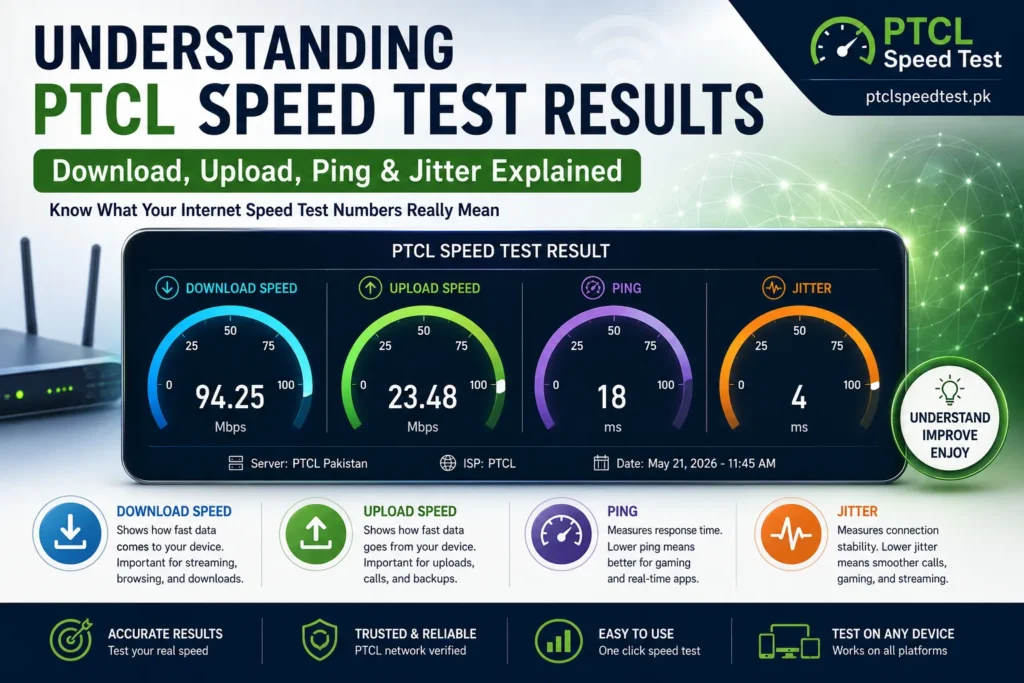
Understanding PTCL Speed Test Results helps you know whether your internet connection is performing as expected. After running a PTCL Speed Test, you’ll see download speed, upload speed, ping, and jitter. This guide explains what each result means, what’s considered good, and how to improve poor results.
That’s a common gap, and it’s worth closing, because a speed test is only useful if you know what you’re reading. A “45 Mbps” result tells you almost nothing on its own. Is that good? Bad? Does it explain why your video call kept freezing last night? This guide walks through every number on your PTCL speed test, in plain language, so the next time you run one, you’ll actually know what you’re looking at.
What Is a Good PTCL Speed for Different Internet Packages?
Example table
| Package | Expected Speed |
|---|---|
| 10 Mbps | 8–10 Mbps |
| 20 Mbps | 17–20 Mbps |
| 30 Mbps | 26–30 Mbps |
| 50 Mbps | 45–50 Mbps |
| 100 Mbps | 90–100 Mbps |
Speed Test Result Comparison
| Metric | Good | Average | Poor |
|---|---|---|---|
| Download | High | Medium | Low |
| Upload | High | Medium | Low |
| Ping | Under 30ms | 30–80ms | Above 100ms |
| Jitter | Under 10ms | 10–30ms | Above 30ms |
Table of Contents
- What Does a PTCL Speed Test Measure?
- How to Read Your PTCL Speed Test Results
- What Is a Good Download Speed?
- What Is a Good Upload Speed?
- What Is a Good Ping?
- What Is Jitter?
- Why Are My Speed Test Results Lower Than My Package?
- How to Improve Your Speed Test Results
- Common Examples
- Frequently Asked Questions
What Does a PTCL Speed Test Measure?
A speed test measures your connection between your device and a nearby test server at that specific moment, across a few distinct dimensions.
Download speed is how fast data travels from the internet to you — the number that determines how quickly a page loads or a video starts playing.
Upload speed is the reverse — how fast data leaves your device, which matters for calls, uploads, and backups.
Ping is response time — how long a signal takes to reach the server and come back, measured in milliseconds.
Jitter is how much that response time varies from one moment to the next. A steady ping and a jittery one can average out to the same number, yet feel completely different in a call or a game.
Latency is often used interchangeably with ping — both describe the delay in your connection’s response time.
Response time is the practical, felt version of latency — the pause you notice before something happens after you click or speak.
Connection stability isn’t a single number on the test, but a pattern across all of the above — a connection that holds steady across download, upload, ping, and jitter is stable; one that swings wildly, even with a good average, isn’t.
None of these numbers exist to be stared at in isolation. They exist to tell you whether your connection can actually support what you’re trying to do with it.
How to Read Your PTCL Speed Test Results
Here’s the practical translation of each metric:
| Metric | What a higher/lower number means |
|---|---|
| Download speed | Higher = faster loading, streaming, downloading |
| Upload speed | Higher = faster calls, uploads, backups |
| Ping | Lower = quicker response, less noticeable delay |
| Jitter | Lower = more stable, consistent connection |
Download and upload speed are measured in Mbps (megabits per second) — not to be confused with MB (megabytes), which is what file sizes are usually shown in. This is a common source of confusion: a “10 MB file” downloading on a “50 Mbps connection” doesn’t take exactly one-fifth of a second, because of the unit difference and real-world overhead.
Ping and jitter are both measured in milliseconds (ms) — a thousandth of a second. These are the two numbers most people skip past, and they’re often the actual explanation behind a connection that “feels” slow despite a solid download number.
What Is a Good Download Speed?
There’s no single “good” download speed — it depends entirely on what you’re doing and how many people are doing it at once. Here’s a practical breakdown:
| Use Case | Roughly Recommended Download Speed |
|---|---|
| Browsing, email | 1–5 Mbps |
| YouTube (HD) | 5–10 Mbps |
| Netflix (HD) | 5–10 Mbps |
| Zoom / video calls | 3–5 Mbps |
| Online classes | 5–10 Mbps |
| Online gaming | 10–25 Mbps (ping matters more than this number) |
| 4K streaming | 25 Mbps+ |
| Multiple users/devices at once | Add the above needs together, plus headroom |
A single person browsing and occasionally streaming HD video can be comfortable on a modest package. A household with four people simultaneously streaming, gaming, and video calling needs meaningfully more — not because any one activity demands much, but because the demands stack.
This is also why the “good speed” question can’t be answered with one number for everyone—it should be answered against your own package and your own household’s actual usage. If you’re not sure what your package promises, check PTCL Packages before judging your result.
What Is a Good Upload Speed?
Upload speed gets far less attention than download, but it’s often the real cause behind a frustrating video call or a stalled cloud backup.
Video calls (Zoom, Teams, WhatsApp calls): Generally need a modest but steady upload speed — the issue is usually consistency, not raw speed. A call that freezes specifically when you talk, but not when you listen, is almost always an upload problem on your end.
Google Drive / Dropbox: Uploading documents and photos depends directly on upload speed. Large batches—a folder of photos, a video file—will visibly take longer on a lower-upload connection.
Live streaming: This is one of the most upload-intensive things a home connection does. Streaming in HD to a platform like YouTube or Facebook requires a stable upload speed well above what casual browsing needs.
Uploading videos: Similar to live streaming but without the real-time requirement — a slower upload speed just means more waiting, not necessarily buffering during the process itself.
Cloud backup: Automatic backups (phone photos, laptop files) run in the background and quietly compete with anything else you’re doing that needs upload bandwidth — this is a common, invisible reason upload-heavy tasks feel slower than expected.
A rough rule of thumb: if you regularly do video calls, cloud uploads, or any live streaming, upload speed deserves as much attention from you as download speed does—most people check only one of the two.
What Is a Good Ping?
Ping is measured in milliseconds, and unlike download/upload speed, lower is always better.
| Ping Range | Quality | What It Feels Like |
|---|---|---|
| Under 20ms | Excellent | Instant response, ideal for competitive gaming |
| 20–50ms | Good | Smooth for gaming, calls, and general use |
| 50–100ms | Average | Noticeable delay in fast-paced games, usually fine for calls |
| Over 100ms | Poor | Lag in games, possible delay or talk-over in calls |
Gaming: Ping is often more important than download speed for online gaming. A fast download connection with high ping will still feel laggy, because the delay is in how quickly your actions reach the game server, not how much data you can pull down.
Video calls: High ping shows up as a delay between when someone speaks and when you hear it — the awkward “talking over each other” pattern in a call is frequently a ping issue, not a hardware or app problem.
Remote work: Tools that rely on real-time responsiveness—screen sharing, remote desktop access, live collaboration tools — are all more sensitive to ping than to raw download speed.
What Is Jitter?
Jitter measures how much your ping changes from one moment to the next. If your ping bounces between 15ms and 80ms repeatedly instead of holding steady, that inconsistency is jitter.
This is one of the most overlooked numbers on a speed test, and arguably one of the most disruptive in practice. A connection can have a perfectly reasonable average ping and still feel unstable if that number is constantly swinging.
Voice calls: Jitter is often the reason a call sounds clear for a few seconds, breaks up, then sounds clear again — your ears notice the inconsistency even when the average numbers look fine.
Gaming: Inconsistent response time causes unpredictable lag spikes rather than a steady, adjustable delay — many players find this harder to deal with than a consistently higher ping.
Zoom and video meetings: High jitter shows up as choppy audio or video that periodically freezes for a fraction of a second, even on a connection with decent average speed.
Streaming: Less noticeable here than in real-time activities, since streaming platforms buffer content ahead of time — jitter matters far more for anything happening live.
Ping vs. jitter, in one line: ping tells you how long the delay is; jitter tells you how consistent that delay is. A connection needs both to be low for a genuinely smooth real-time experience.
Why Are My Speed Test Results Lower Than My Package?
A result below your package’s advertised speed doesn’t automatically mean something is broken. Common, everyday causes include:
WiFi. Signal weakens with distance, walls, and interference — a device far from the router will show a lower result than the same connection tested up close.
Router. Older routers, or ones that don’t support current WiFi standards, can become the actual bottleneck, capping your result below what your plan is capable of.
Peak hours. Evening hours see the highest number of users online simultaneously, which can temporarily reduce speeds through shared network infrastructure.
Background downloads. App updates, game downloads, and cloud syncs running silently can consume a large share of your bandwidth during a test without any visible sign.
Distance. For DSL specifically, physical distance from the local telephone exchange directly affects your achievable speed — this is a known characteristic of the technology, not a fault.
Old devices. A phone or laptop that doesn’t support current WiFi standards will cap your test result on that device, regardless of what your actual connection is capable of.
DSL line quality. Old or damaged copper wiring, loose connections, or line noise can reduce DSL performance independent of your package tier. See PTCL DSL vs Flash Fiber if you’re weighing whether a technology switch would help.
Server load. The specific test server you connect to can affect your result — a busier or more distant server can show a lower number than an identical connection tested against a closer, less loaded one.
If you’ve ruled these out and results are still consistently low, Why Is My PTCL Internet Slow? walks through a structured troubleshooting sequence.
How to Improve Your Speed Test Results
Before assuming your package needs an upgrade, these steps are worth trying first:
- Restart your router and modem — clears temporary issues and re-establishes a fresh connection.
- Test on Ethernet, not just WiFi — isolates whether the issue is your connection or your wireless setup.
- Move closer to the router, or move the router to a more open, central location.
- Disconnect unused devices temporarily and re-test.
- Update or upgrade your router if it’s several years old or doesn’t support current WiFi standards.
- Reduce background usage — pause downloads and cloud syncs while testing or during important calls.
- Choose the right WiFi band — 5GHz generally offers faster speeds at shorter range, while 2.4GHz reaches farther but slower.
- Check for known outages in your area before assuming the issue is local to your home.
Check Your PTCL Internet Speed
Now that you understand your results, test your connection again.
Run the PTCL Speed Test
Compare:
- Download Speed
- Upload Speed
- Ping
- Jitter
and see whether your connection is performing as expected.
Common Examples
Example 1: 100 Mbps package, getting 94 Mbps — is this normal? Yes. Speed test results rarely match the advertised number exactly, and a small gap like this is well within normal variation caused by network overhead, server distance, and momentary conditions. This isn’t something to be concerned about.
Example 2: 30 Mbps package, getting 12 Mbps — what should you do? This is a meaningful enough gap to investigate. Start with the improvement steps above — test on Ethernet, restart the router, check for background downloads, and re-test at a different time of day. If the gap persists across multiple tests and times, this is worth raising with PTCL support, ideally with your test results on hand.
Example 3: High download speed, but high ping — what does this mean? This points to a connection that can move large amounts of data well but has a slow response time — often related to server distance, network congestion, or occasionally a routing issue rather than your raw bandwidth. This is a common reason gaming or calls feel laggy even when a download-focused speed test “looks fine.”
Example 4: Good speed, but high jitter — what does this mean? Your connection can handle data volume fine, but its timing is inconsistent. This typically shows up as choppy calls or unpredictable lag spikes in games, even though the headline speed number looks healthy. Jitter issues are often tied to WiFi interference or network congestion rather than your actual plan speed.
Frequently Asked Questions
What do PTCL speed test results actually mean? They show four things: how fast data reaches you (download), how fast data leaves you (upload), how quickly your connection responds (ping), and how consistent that response time is (jitter).
What is a good download speed for PTCL? It depends on your usage — light browsing needs very little, while 4K streaming or multiple simultaneous users need considerably more. Compare your result against your specific package rather than a generic number.
Why is my upload speed lower than my download speed? This is standard design for most broadband connections, including PTCL’s, since typical usage involves far more downloading than uploading.
What is a good ping for gaming? Under 20ms is excellent, 20–50ms is good, and above 100ms will generally feel laggy in fast-paced or competitive games.
What is jitter and why does it matter? Jitter measures how much your ping varies over time. High jitter causes choppy calls and unpredictable lag, even when your average speed and ping look fine.
Why do my speed test results change every time I test? Network conditions shift constantly — active devices, time of day, and which server you connect to can all affect the result, even minutes apart.
Should I test on WiFi or wired? Both, if possible. Wired testing isolates your actual connection; WiFi testing shows what your devices experience day to day. A large gap between the two usually points to a WiFi issue, not an ISP issue.
Does server location affect my results? Yes. A test server that’s physically closer to you typically produces a lower, more favorable ping than a distant one.
Can an old router affect my speed test results? Yes. An outdated router can cap your result below what your actual internet plan supports.
My download speed matches my package, but gaming still lags — why? This usually points to ping, jitter, or occasionally packet loss rather than download speed. A gaming-related slowdown is a latency and stability issue more often than a bandwidth one.
How often should I run a speed test? There’s no fixed schedule, but testing periodically — and especially when something feels off — gives you a baseline to compare against later.
What should I do if my results are consistently below my package speed? Rule out the common causes covered above first. If the gap persists across multiple tests and times of day, contact PTCL support with your results on hand.