
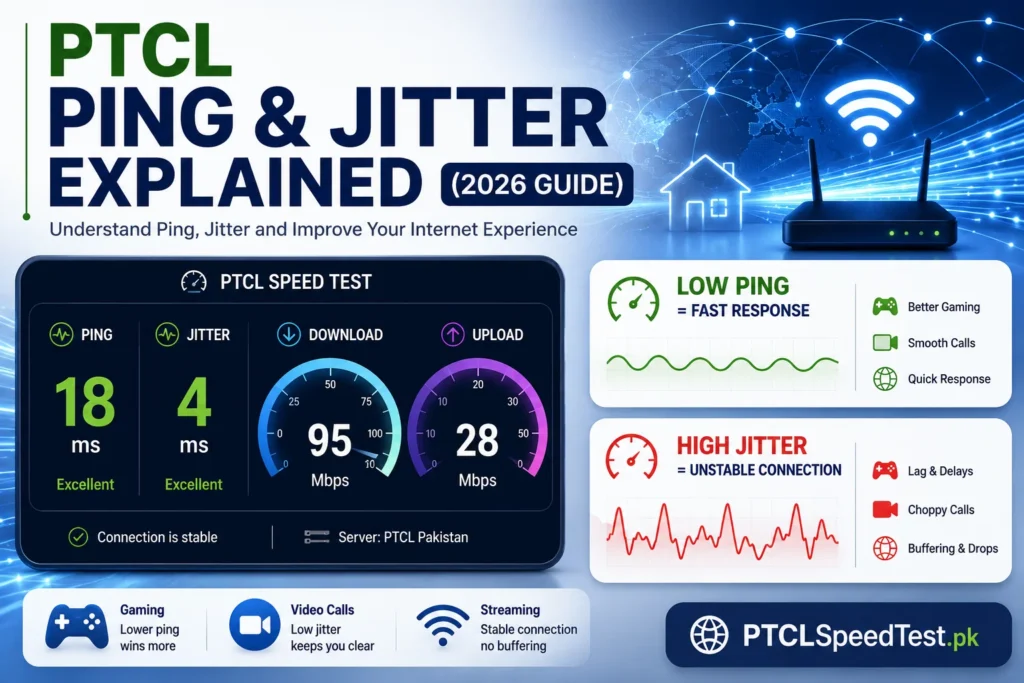
Most people judge their internet by one number: download speed. It’s the number on the package, the number in the ad, and the number everyone compares. But if you’ve ever had a fast connection that still felt laggy in a game or choppy on a call, you’ve already experienced what download speed doesn’t tell you.
Two other numbers — ping and jitter — are usually the real explanation. They rarely get top billing on a speed test result, but they often decide whether your internet actually feels smooth, regardless of how high your download number is. This guide explains both in plain terms, shows exactly where they matter, and walks through what you can actually do about them.
Table of Content
What Is Ping?
Ping measures response time — specifically, how long it takes a small signal to travel from your device to a server and back again. It’s essentially a round-trip timer for your connection.
It’s measured in milliseconds (ms) — a thousandth of a second. Unlike download or upload speed, where a bigger number is better, ping works the opposite way: lower is better. A lower ping means a shorter delay between an action and its result.
Real-life example: imagine tapping a light switch and the bulb taking a noticeable half-second to turn on. That gap is what high ping feels like online — you click, and there’s a small but perceptible pause before anything happens. In a video call, that gap shows up as a delay before the other person hears you. In a game, it shows up as your character reacting a beat after you press the button.
What Is Jitter?
Jitter measures something different: not how long the delay is, but how much that delay changes from one moment to the next.
If your ping stays close to 30ms consistently, that’s low jitter—predictable and stable. If your ping jumps between 15ms and 90ms every few seconds, that’s high jitter — even though the average might still look like “30ms” on paper.
This inconsistency is what makes a connection feel unstable rather than just slow. Why calls become choppy: a video call doesn’t need a perfectly instant connection, but it does need a consistent one—audio and video data need to arrive at a steady, predictable pace. When jitter is high, some data arrives late, some arrives early, and the call software has to compensate—which is exactly what produces that broken-up, choppy audio and freezing video you’ve probably experienced even on a connection that “should” be fine.
Ping vs Jitter
| Ping | Jitter | |
|---|---|---|
| Meaning | How long a round-trip signal takes | How much that time varies between attempts |
| Measured in | Milliseconds (ms) | Milliseconds (ms) |
| Lower/Higher | Lower is better | Lower is better |
| Affects | Overall responsiveness and delay | Consistency and stability |
| Best value | As close to 0ms as realistically possible | As close to 0ms variation as possible |
Ping vs Jitter at a Glance
LOW PING
⚡ Faster response
🎮 Better gaming
📞 Clear calls
LOW JITTER
📶 Stable connection
🎙 Smooth voice
🎥 No freezing
Remember: A 100 Mbps connection can still feel slow if ping is very high. Download speed controls how fast data transfers, while ping controls how quickly your connection responds.
A simple way to remember the difference: ping is the delay, jitter is how unpredictable that delay is. A connection can have a slightly higher ping and still feel smooth if it’s consistent—but a connection with a low average ping can still feel rough if that number keeps jumping around.
What Is a Good Ping?
There’s no PTCL-specific guarantee attached to any of these numbers — they depend on your connection type, distance to the server, and network conditions at the time. But general ranges are widely used as a practical guide:
| Ping Range | Quality |
|---|---|
| Under 20ms | Excellent |
| 20–50ms | Good |
| 50–100ms | Average |
| Over 100ms | Poor |
These ranges apply broadly across most online activities, though the tolerance for higher ping varies — a slower-paced game or a casual call can feel fine at numbers that would frustrate a competitive gamer.
What Is Good Jitter?
Jitter doesn’t have as widely standardized a scale as ping, but the general pattern looks like this:
| Jitter Level | What It Feels Like |
|---|---|
| Low jitter (roughly under 10ms) | Stable, predictable connection — calls and games feel smooth |
| Medium jitter (roughly 10–30ms) | Occasional inconsistency — noticeable but often tolerable |
| High jitter (over 30ms) | Frequent instability — choppy calls, unpredictable lag spikes |
As with ping, these are general reference points rather than fixed thresholds — what feels acceptable can vary depending on what you’re doing and how sensitive that activity is to timing consistency.
How Ping Affects Gaming
Gaming is one of the clearest places where ping directly shapes the experience, often more than download speed does.
Lag is the general term for the delay between an action and its result showing up in-game — high ping is usually the direct cause.
Delay in input response means your character reacts a moment after you actually pressed a button or moved a joystick — frustrating in any game, and often decisive in competitive ones.
Rubber banding — where your character appears to snap backward to a previous position — happens when your connection’s delay causes a mismatch between where the game server thinks you are and where your screen shows you.
Hit registration issues, common in shooters, occur when high ping causes a delay between when you fire and when the server actually processes it, sometimes resulting in shots that looked like hits on your screen not registering.
This applies broadly across popular titles played in Pakistan — PUBG Mobile, Call of Duty, Free Fire, Valorant, and Fortnite, as well as PlayStation and Xbox console gaming. The specific game changes, but the underlying relationship between ping and how “responsive” the game feels stays the same.
How Ping Affects Video Calls
Video calling apps are built around real-time back-and-forth communication, which makes them just as sensitive to ping as gaming, if less dramatically.
Zoom, Google Meet, Microsoft Teams: High ping introduces a delay between when someone speaks and when you hear it, which often leads to the awkward experience of two people accidentally talking over each other.
WhatsApp video calls: The same principle applies on mobile — a high-ping connection can make conversations feel slightly out of sync, even if the video itself looks clear.
Voice delay is the most immediately noticeable symptom — a pause before you hear a response.
Frozen video can happen when ping spikes suddenly, causing a brief interruption while the connection catches up.
Robotic audio — the choppy, broken-up sound some calls produce — is often more a jitter symptom than a pure ping symptom, since it reflects inconsistency in how audio data arrives rather than a simple, steady delay.
Common Causes of High Ping
Router. An older or lower-quality router can add processing delay before your data even leaves your home network.
WiFi interference. Other networks, electronics, and physical obstructions can degrade wireless signal quality, indirectly increasing ping.
Distance. Physical distance — both from your router at home and from the server you’re connecting to — adds to round-trip time. This applies to DSL line distance from the local exchange as well as general server distance.
Network congestion. A busy network, whether it’s your home WiFi handling many devices or a broader network experiencing high traffic, can increase response times for everyone using it.
Background downloads. Large downloads running in the background compete for the same connection, which can push up ping for anything else happening at the same time.
VPN. Routing your traffic through a VPN adds an extra step in the path your data travels, which typically increases ping to some degree — this is expected, not a fault.
Server location. A server that’s geographically farther away will generally produce a higher ping than one closer to you, independent of your connection quality.
Old router. Beyond general age, older routers may lack more efficient traffic-handling capabilities that newer models include, adding to processing delay.
Peak hours. During the busiest hours of the evening, shared network infrastructure serving many users at once can show higher, less consistent ping than during quieter periods. If your ping and jitter remain consistently high even after trying these steps, our guide on Why Is My PTCL Internet Slow? walks through a complete troubleshooting process.
Common Causes of High Jitter
Weak WiFi. A poor wireless signal doesn’t just lower speed — it can cause inconsistent delivery timing, which is exactly what jitter measures.
Crowded network. Many devices actively competing for the same WiFi channel or home network bandwidth can cause data to arrive unevenly rather than at a steady pace.
Interference. Physical interference from other electronics or nearby networks can cause intermittent signal disruption, producing the kind of variability that shows up as jitter.
Packet delay. When small pieces of data (“packets”) don’t all take the same path or experience the same conditions, they can arrive at uneven intervals — a core technical driver of jitter.
Background uploads. Cloud backups or file uploads running in the background can compete for upload bandwidth in bursts, creating inconsistency for anything else needing a steady connection at the same time.
Multiple users. Several people actively using the same network simultaneously — streaming, gaming, calling — can cause fluctuating demand that shows up as jitter for everyone sharing that connection.
DSL vs Flash Fiber Ping
Connection technology plays a real role in both ping and jitter, not just raw speed.
| DSL | Flash Fiber | |
|---|---|---|
| Typical ping | Higher, more variable | Lower, more stable |
| Typical jitter | More prone to fluctuation | Generally steadier |
| Gaming | Workable for casual play | Better suited to competitive/real-time gaming |
| Reliability | More affected by line condition and distance | Generally more consistent |
Fiber-optic connections transmit data as light through glass rather than electrical signals through copper, which makes them less susceptible to the kind of signal degradation that affects DSL over distance and line condition. This is why Flash Fiber usually shows more stable latency than DSL — it’s less a matter of one technology being “better tuned” and more a fundamental difference in how the signal travels. For a broader comparison of both technologies, see [PTCL DSL vs Flash Fiber].
WiFi vs Ethernet Ping
| WiFi | Ethernet | |
|---|---|---|
| Latency | Generally higher | Generally lower |
| Stability | More variable, affected by interference | More consistent |
| Gaming | Workable, but more prone to spikes | Preferred for competitive gaming |
| Video calls | Usually fine, but more susceptible to drops | More reliably stable |
| Packet consistency | Lower, due to wireless signal factors | Higher, since data travels through a direct physical connection |
Ethernet removes the variables that affect wireless signal — distance, walls, interference from other devices — by delivering data through a direct physical cable. This generally results in both lower ping and lower jitter compared to WiFi on the same underlying connection. If you’re troubleshooting an inconsistent connection, testing on Ethernet is one of the fastest ways to tell whether the issue is your WiFi setup or something further upstream.
How to Reduce Ping
- Restart your router — clears minor technical issues that can quietly add to response delay.
- Use Ethernet where possible, especially for gaming or important calls.
- Switch to the 5GHz WiFi band if your router supports it — generally lower latency at shorter range than 2.4GHz.
- Close background downloads before gaming or calling.
- Disable VPN if you don’t specifically need it — it adds a routing step that typically increases ping.
- Move closer to your router, or reposition the router to a more open, central location.
- Upgrade an old router if it’s several years old or lacks modern traffic-handling features.
- Reduce network congestion by disconnecting devices you’re not actively using.
- Choose a game server closest to Pakistan whenever possible.
How to Reduce Jitter
- Reduce interference by moving your router away from other electronics and thick walls.
- Limit uploads — pause cloud backups or large uploads during calls or gaming sessions.
- Restart your router periodically to clear minor inconsistencies.
- Use a wired connection wherever possible — this is one of the single most effective fixes for jitter specifically.
- Use a quality router — older or budget hardware can struggle to maintain consistent data handling under load.
- Avoid an overloaded WiFi network by limiting how many devices are actively streaming, gaming, or calling at the same time.
Frequently Asked Questions
What is ping? Ping is the time it takes for a signal to travel from your device to a server and back, measured in milliseconds. Lower ping means a shorter delay.
What is jitter? Jitter measures how much your ping varies over time. A connection with high jitter feels unstable, even if the average ping looks reasonable.
What is a good ping? Generally, under 20ms is excellent, 20–50ms is good, 50–100ms is average, and above 100ms is considered poor for most real-time activities.
What is good jitter? Roughly under 10ms is considered low and stable, 10–30ms is moderate, and above 30ms tends to produce noticeable instability.
Why is my ping high? Common causes include WiFi interference, distance from your router or the server, network congestion, background downloads, and using a VPN.
Why is my ping different every test? Network conditions change constantly — active devices, time of day, and which server you connect to can all cause ping to vary between tests.
Does WiFi increase ping? Yes, generally. Wireless signal is more susceptible to interference and distance-related loss than a direct wired connection, which can add to both ping and jitter.
Does Ethernet reduce ping? Yes. A wired connection removes the variables that affect wireless signal, typically resulting in both lower and more consistent ping.
Does Flash Fiber have lower ping than DSL? Generally yes. Fiber-optic technology tends to produce more stable, lower latency than copper-based DSL, largely due to how differently the two technologies transmit data.
Can download speed affect ping? Not directly — they measure different things. However, heavy download activity happening at the same time can indirectly affect ping by adding congestion to your connection.
Can upload speed affect ping? Similarly, not directly, but heavy upload activity running simultaneously can contribute to congestion that affects response time.
How can I reduce jitter? Using a wired connection, reducing background uploads, avoiding an overloaded WiFi network, and using quality router hardware all help reduce jitter.
Why does my video call sound robotic sometimes? This is often a jitter symptom rather than a pure ping issue — inconsistent data arrival can cause audio software to compensate in ways that sound choppy or robotic.
Is high ping always PTCL’s fault? Not necessarily. Many contributing factors — your router, WiFi setup, background usage, and even the server you’re connecting to — sit outside your ISP’s direct control.
Should I test ping more than once? Yes. A single test reflects one moment in time — testing a few times, ideally at different points in the day, gives a much more accurate picture of your typical ping and jitter.
Does restarting my router reduce ping? Sometimes. Restarting your router can clear temporary network issues and reduce ping or jitter caused by overloaded memory or long uptime. It won’t fix problems caused by ISP congestion or distant game servers.