
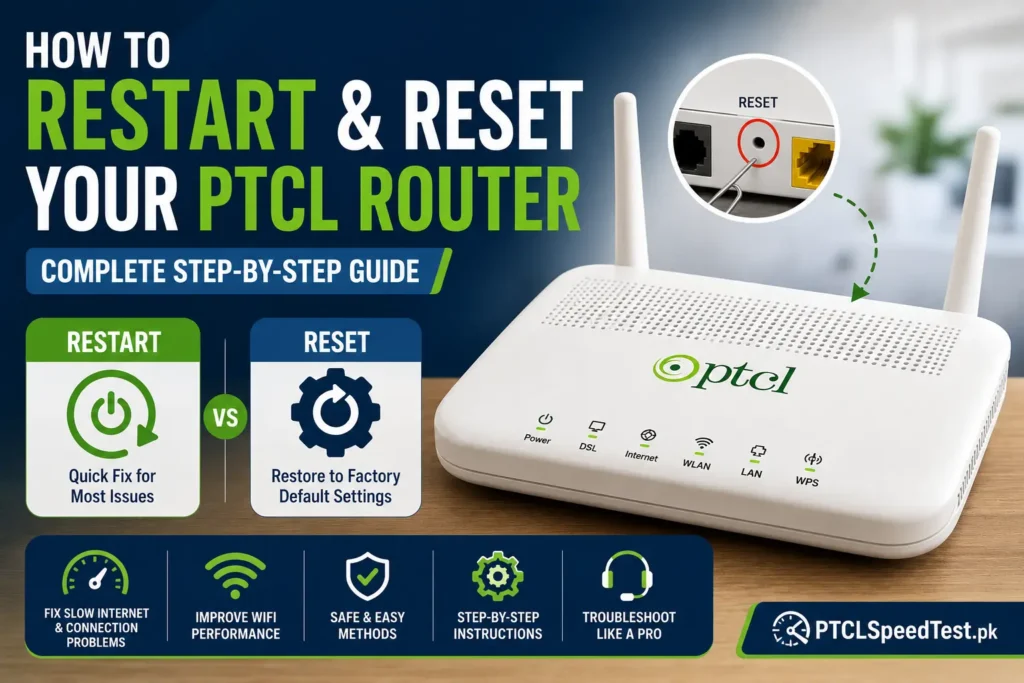
Before you call support, change your package, or assume something is broken, there’s a simple step worth trying first: restarting your router. It sounds almost too basic to matter, but a router that’s been running for weeks without a break can develop small technical hiccups that a simple restart clears out completely. This guide walks through exactly how to do it — plus when a full reset is actually necessary, what each one does differently, and what to check if the problem doesn’t go away.
Before restarting your router, it’s worth checking whether the issue is actually your connection speed. Run a PTCL Speed Test to see your download speed, upload speed, ping, and jitter before making any changes.
Table of Contents
Why Restarting Your Router Helps
Routers are small computers, and like any computer, they can develop minor software glitches the longer they run without a break. A restart clears the router’s temporary memory, closes any processes that may have gotten stuck, and re-establishes a fresh connection to PTCL’s network.
This is exactly why “have you tried restarting it” is such common advice — it’s not a dismissive answer, it’s genuinely one of the most effective first steps for a wide range of everyday connection issues, from slow speeds to devices that suddenly can’t connect.
Restart vs Reset
These two terms get used interchangeably, but they do very different things.
Restart (Reboot): This simply powers the router off and back on. Nothing about your settings — WiFi name, password, PPPoE login — changes. It’s the equivalent of restarting your phone or computer.
Factory Reset: This wipes the router’s configuration entirely, returning it to the state it was in when it left the factory. Your custom WiFi name, password, and any other settings you’ve changed are erased, and you’ll need to set them up again.
Power Cycle: This is a specific way of restarting — unplugging the router from the power source entirely (rather than using a power button), waiting a moment, then plugging it back in. It has the same effect as a standard restart but is worth knowing as a fallback if your router’s power button isn’t responding.
Understanding this difference matters, because reaching for a reset when a restart would have solved the problem means redoing your WiFi setup for no reason.
When Should You Restart?
A restart is the right first move for most everyday issues:
- Internet feels slower than usual
- WiFi has disconnected and won’t reconnect
- A device that was previously connected suddenly can’t see the network
- The router feels unresponsive or the admin panel won’t load
- After a power outage, once power is stable again
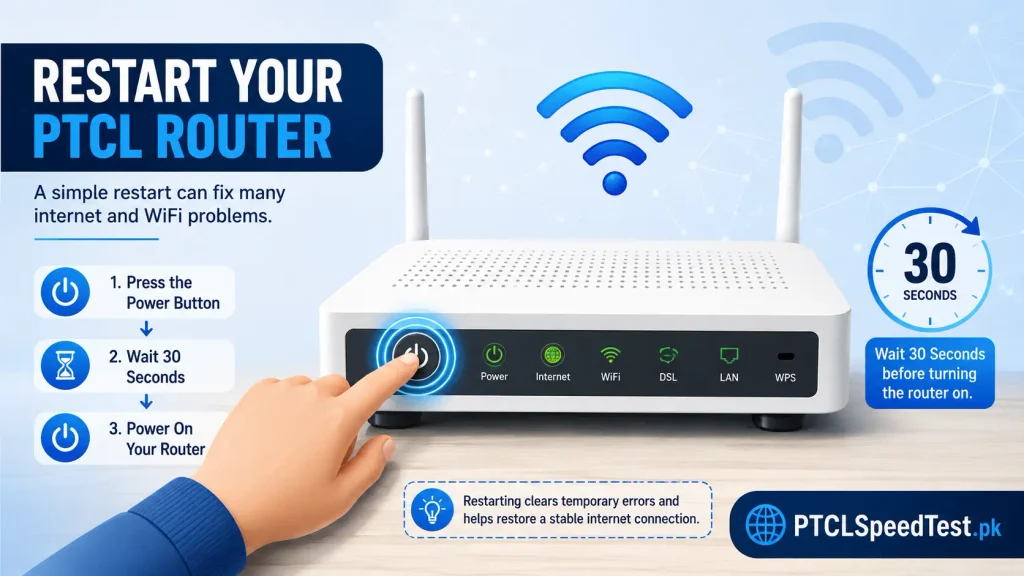
Restarting is low-risk and doesn’t affect any of your settings, which is exactly why it should always be the first thing you try, not the reset button.
When Should You Reset?
A factory reset is a bigger step, and it’s worth reserving for situations where a restart genuinely hasn’t helped:
- You’ve forgotten your router’s admin login or WiFi password and have no way to recover it
- The router is behaving erratically even after multiple restarts
- You’re preparing to hand the router to someone else and want to wipe your settings
- PTCL support has specifically advised a factory reset as part of troubleshooting
Because a reset erases your configuration, it should be a deliberate decision, not a default troubleshooting reflex.
How to Restart a PTCL Router
There are three common ways to restart your router, depending on what’s convenient or accessible:
Using the power button. Most PTCL routers have a power button on the back. Press it once to turn the router off, wait about 30 seconds, then press it again to turn it back on. Give it a minute or two to fully reconnect before testing your internet.
Unplugging the power adapter. If your router doesn’t have an accessible power button, or you’d rather power cycle it directly, unplug the power adapter from the wall or the router itself, wait about 30 seconds, then plug it back in.
Restarting from the router admin panel. Most PTCL routers let you trigger a restart from their web-based settings page, usually accessed by typing the router’s IP address (commonly 192.168.1.1 or 192.168.10.1, depending on your model) into a browser, logging in, and finding a “Reboot” or “Restart” option in the management menu. This achieves the same result as the power button, just without touching the physical device.
Router interfaces vary by model and firmware version, so the exact menu layout may look slightly different depending on which router PTCL has provided you — but the general “Restart” or “Reboot” option is present on virtually all modern models.
How to Reset a PTCL Router
If you’ve confirmed a full factory reset is actually what you need, here’s the general process:
Locate the reset hole. Most PTCL routers have a small, recessed reset button — usually labeled “Reset” — on the back or bottom panel. It’s intentionally recessed so it isn’t triggered by accident.
Hold the button. Using a pin, paperclip, or similar small object, press and hold the reset button. Most routers require holding it for somewhere around 10 seconds, though this can vary slightly by model — the router’s lights typically blink or change pattern to indicate the reset is underway.
Wait. Release the button once you see the lights change, and give the router a few minutes to fully restart and reload its factory settings.
Reconnect. Your WiFi network name and password will have reverted to the factory defaults (usually printed on a sticker on the router itself), so you’ll need to reconnect your devices using those default credentials.
Login again. To restore your internet connection, you’ll typically need to log back into the router’s admin panel and re-enter your PPPoE username and password — the same credentials originally provided by PTCL when your service was set up. If you don’t have these on hand, PTCL support can help you retrieve them.
What Happens After Reset?
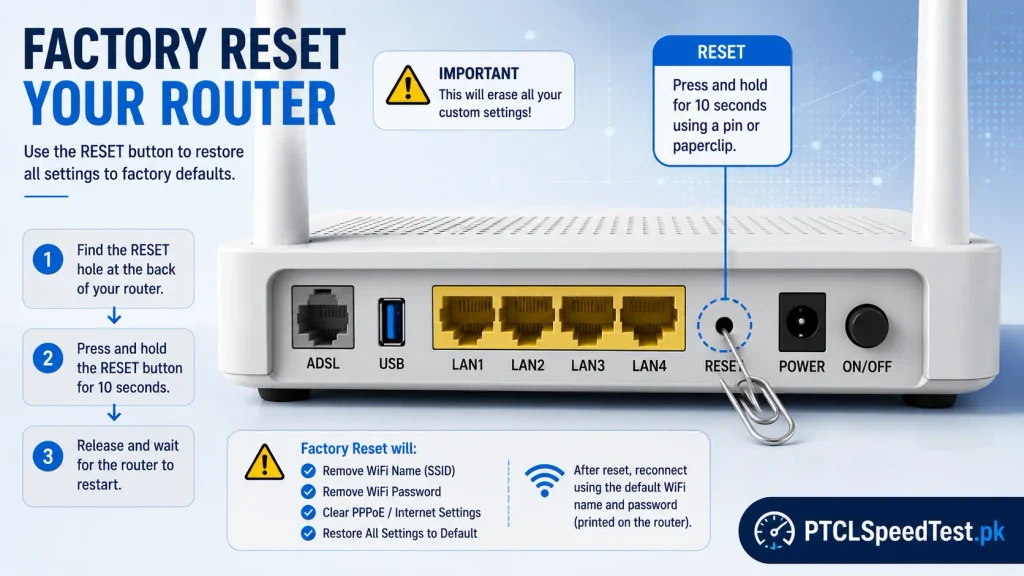
A factory reset removes:
- Your custom WiFi network name (SSID)
- Your custom WiFi password
- Any custom settings you’ve configured (port forwarding, parental controls, custom DNS, etc.)
- Your PPPoE settings, if your connection type requires them—meaning you’ll likely need to re-enter your PTCL-provided username and password to restore internet access
- WiFi Name will be deleted
- WiFi Password will be deleted
- PPPoE settings could be removed
This is exactly why a reset shouldn’t be a casual first step—it genuinely undoes any customization you’ve done, not just a temporary glitch.
Router LED Status Explained
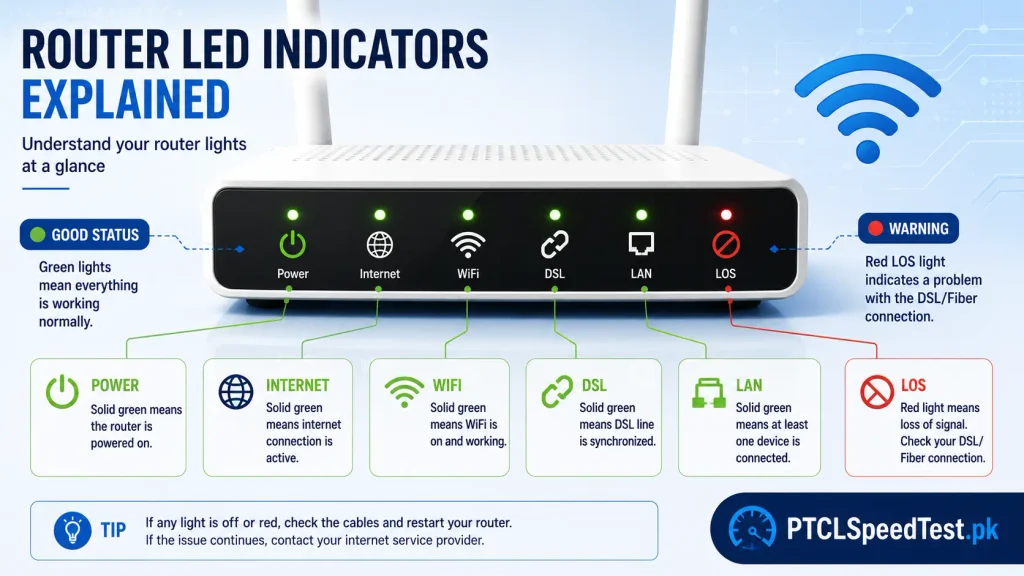
Your router’s front panel lights are a quick way to understand what’s working and what isn’t, both before and after a restart or reset.
| LED | Meaning |
|---|---|
| Power | Solid usually means the router is powered on correctly; off or blinking oddly can indicate a power issue |
| DSL | Solid typically means a stable DSL line connection; blinking often means it’s still trying to sync |
| Internet | Solid usually confirms an active internet connection; off or red often indicates no connection |
| WLAN | Indicates WiFi is broadcasting; off means WiFi may be disabled |
| LOS (Fiber) | “Loss of Signal” — for fiber connections, a solid or red LOS light usually indicates a problem with the fiber line itself |
| LAN | Indicates an active wired (Ethernet) connection to a specific port |
Exact colours and blink patterns can vary by router model, so it’s worth checking the label or manual for your specific device if you’re unsure what a particular pattern means.
💡 Pro Tip
If your router has been running continuously for several weeks, restarting it once every few weeks can help maintain stable performance.
Common Mistakes
A few things worth avoiding when restarting or resetting:
Holding reset too long. While a reset generally requires holding the button for around 10 seconds, holding it excessively longer than needed doesn’t do anything extra — it just delays you getting back online.
Resetting during a firmware update. If your router happens to be mid-update, interrupting it with a reset or power cut can cause more serious issues than the one you were trying to fix. If you suspect an update is in progress, wait before resetting.
Using the wrong power adapter. Router power adapters aren’t always interchangeable, even between similar-looking models. Using the wrong voltage or connector can damage the router.
A loose DSL or fiber cable. Before assuming a reset is needed, check that all cables are firmly connected — a loose connection can mimic symptoms that look like a deeper router problem.
Restarting repeatedly in a short window. Restarting once and giving it a few minutes to fully reconnect is the right approach. Restarting again and again in quick succession usually doesn’t help further and can make it harder to tell whether the original restart actually worked.
Common Problems After Reset
Internet not working after restart. If a simple restart doesn’t restore your connection, check your cable connections first, then consider whether the issue might be broader — see Why Is My PTCL Internet Slow? for a structured way to rule out other causes.
Internet not working after reset. This is expected until you’ve logged back into the router and re-entered your PPPoE credentials — a reset intentionally clears this information, so it needs to be manually restored.
DSL light blinking continuously. This usually means the router is still trying to establish a stable line connection. Give it a few minutes; if it persists well beyond that, it may indicate a line-level issue rather than something the router itself can resolve.
LOS red (fiber connections). A red Loss of Signal light typically points to an issue with the fiber line itself rather than the router’s configuration — this is generally a sign to contact PTCL support rather than continue troubleshooting on your end.
WiFi connected but no internet. This specific combination — where devices can see and join the WiFi network but nothing loads — usually points to an issue with the connection between the router and PTCL’s network, rather than your WiFi setup itself.
Troubleshooting
If restarting hasn’t resolved the issue, a few things are worth checking before considering a reset or contacting support:
- Confirm all cables (power, DSL/fiber line, Ethernet if used) are firmly connected
- Check whether the issue affects all devices or just one — a single-device issue points away from the router entirely
- Compare your WiFi and wired performance if you can, to isolate whether it’s a WiFi-specific issue
- Run a PTCL Speed Test once your connection is back to confirm whether performance has actually improved
If you suspect the issue goes beyond basic connectivity—consistently slow speeds even when the connection is stable, for example — Why Is My PTCL Internet Slow? covers a more complete troubleshooting sequence beyond just the router itself.
When NOT to Reset
A factory reset isn’t the right move in every situation:
If the internet is only slow, not disconnected. Slow speeds are often unrelated to anything a reset would fix — see PTCL Ping & Jitter Explained and PTCL Download vs Upload Speed to understand what might actually be causing a slowdown before assuming the router’s configuration is the problem.
During outages. If PTCL is experiencing a broader service outage in your area, no amount of restarting or resetting your own router will restore service — it’s worth checking for known outages before troubleshooting further on your end.
During a firmware update. As mentioned above, interrupting an in-progress update with a reset can create a more serious problem than the one you started with.
When to Contact PTCL
Reach out to PTCL support once you’ve already tried the basics and the problem persists:
- You’ve restarted the router
- You’ve checked that all cables are properly connected
- You’ve confirmed the issue isn’t limited to WiFi on a single device
- You’ve run a speed test and the results are meaningfully below what your package promises
Having this groundwork done before you call means support can move straight to diagnosing the actual issue rather than starting with steps you’ve already completed. If you’re unsure whether your package speed itself is the issue rather than the router, PTCL Packages and PTCL DSL vs Flash Fiber are worth reviewing first, and Is PTCL Fiber Available in My Area? if you’re considering whether a technology switch might help long-term.
For official router setup and troubleshooting resources directly from PTCL, see PTCL’s own WiFi support page.
Frequently Asked Questions
How do I restart my PTCL router? Press the power button once to turn it off, wait about 30 seconds, then turn it back on — or unplug and replug the power adapter if there’s no accessible power button.
Does restarting improve speed? It can, particularly if the slowdown was caused by a temporary technical glitch. It won’t fix issues rooted in your package tier or line quality.
Will restart delete my settings? No. A restart only powers the router off and back on — your WiFi name, password, and other settings remain unchanged.
Will reset delete my WiFi password? Yes. A factory reset erases your custom WiFi name and password, reverting to the router’s default credentials.
How long should I press the reset button? Generally around 10 seconds, though this can vary slightly by router model — release once you see the lights change to indicate the reset is underway.
What’s the difference between restart and reset? A restart simply powers the router off and on without changing settings. A reset wipes all configuration back to factory defaults, including your WiFi name and password.
Can restarting fix a “no internet” problem? Often, yes, especially if the cause was a temporary glitch rather than a physical connection or line issue.
Can I restart my router from my mobile phone? Yes, if you can access the router’s admin panel through your phone’s browser while connected to the network, you can trigger a restart from there — though using the physical power button is usually simpler.
How often should I restart my router? There’s no fixed rule, but restarting periodically, especially if you notice performance gradually declining, is a reasonable habit rather than something to do constantly.
What if my internet doesn’t return after restarting? Check your cable connections, confirm the issue isn’t isolated to one device, and consider whether a broader outage might be affecting your area before troubleshooting further.
Is factory reset safe to do? Yes, it’s a normal, supported function of the router — just be aware it erases your custom settings, so you should be prepared to reconfigure your WiFi name, password, and login afterward.
Should I contact PTCL before resetting? If you’re unsure whether a reset is the right step, contacting PTCL first is a reasonable option, especially since some issues, like line faults, aren’t something a reset can fix at all.
Why do the router lights matter? They give a quick visual indication of what’s working — power, line connection, internet, and WiFi status — which helps you figure out where a problem might be before you start troubleshooting.
Does a reset fix DSL line issues? No. A reset addresses the router’s own configuration, not physical line problems like attenuation or line noise, which require PTCL’s involvement to resolve.
Can restarting too often cause problems? Not typically, though restarting repeatedly in quick succession without giving the router time to fully reconnect can make it harder to tell whether a single restart actually resolved the issue.
Related Guides