
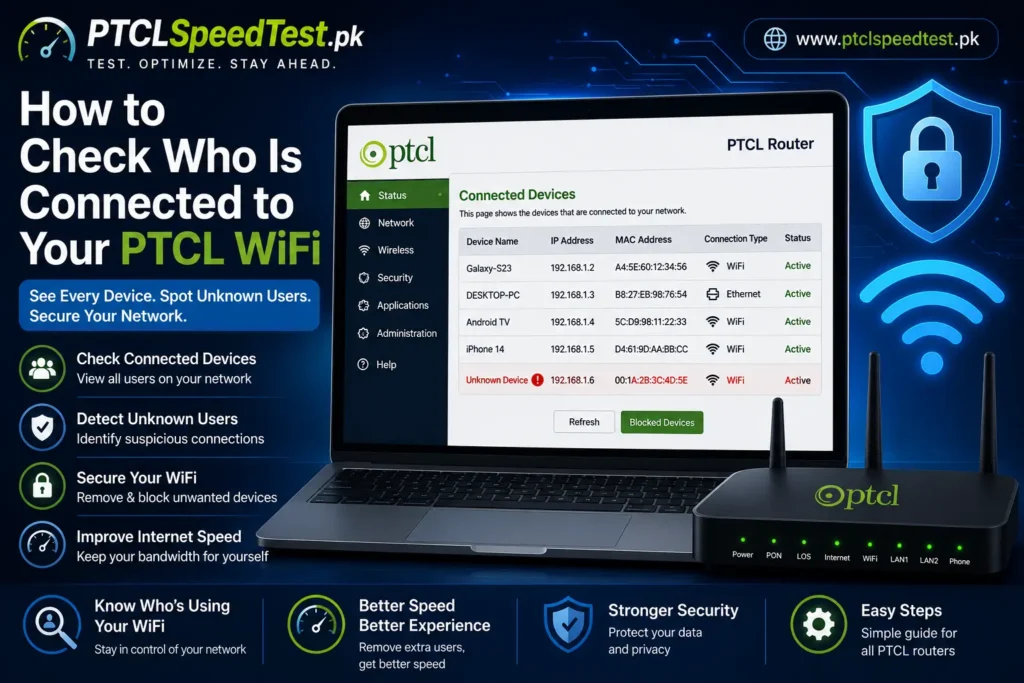
If your internet has been feeling slower than usual, one possibility worth ruling out is that more devices are sharing your connection than you realize — either your own forgotten devices or someone else’s. Checking exactly who’s connected to your PTCL WiFi takes just a few minutes, and it’s one of the more direct ways to understand what’s actually happening on your network.
Before assuming someone unauthorized is using your WiFi, it’s worth first confirming whether your connection itself is behaving normally. Run a PTCL Speed Test to see your current speed — a result that matches your package is a sign your slowdown, if any, likely isn’t about bandwidth being shared with someone else.
Table of Contents
Why Check Connected Devices?
There are a few practical reasons to periodically check who’s on your network, beyond simple curiosity.
Slow internet. More devices actively using your connection at once means less bandwidth available for each one — checking your device list is a quick way to see if your network is more crowded than you expected.
Bandwidth sharing. Even devices you own but forgot about — an old tablet, a smart TV in a guest room, a phone that auto-connects when visiting — quietly use bandwidth in the background.
Unknown users. If your password has been shared, guessed, or wasn’t strong to begin with, someone outside your household could be connected without your knowledge.
Security. Beyond just bandwidth, an unfamiliar device on your network is worth investigating from a general security standpoint, not just a speed one.
Signs Someone May Be Using Your WiFi
A few patterns are worth paying attention to, though none of them are proof on their own:
- Internet suddenly feels slower than usual, without an obvious explanation
- Router lights are constantly blinking heavily, even when your own devices are idle
- Your own devices intermittently disconnect or struggle to reconnect
- You notice unusually high data usage on an unlimited or capped plan
- Your router’s admin panel shows more connected devices than you can account for
Each of these has other possible explanations too — peak-hour congestion, a background download, or an outdated router can all cause similar symptoms. Checking your connected device list is how you actually confirm whether extra users are the real cause, rather than guessing.
Things You Need
Before you begin, have these ready:
- A device connected to your PTCL network, either via WiFi or Ethernet
- Your router’s admin login credentials
- A standard web browser (Chrome, Firefox, Edge, or similar)
Login to PTCL Router
- Open a web browser on a device connected to your PTCL network.
- Type your router’s IP address into the address bar — commonly 192.168.1.1, though some models use 192.168.10.1.
- Press Enter, and a login prompt should appear.
- Enter your admin username and password.
Default login details and exact IP addresses vary by router model, so if one address doesn’t work, try the other, or check the label on your router itself. If you’ve recently changed your admin credentials and don’t remember them, see How to Change PTCL WiFi Password for guidance on resetting access.
Note
Some PTCL routers use different menu names depending on the manufacturer (Huawei, ZTE, FiberHome, Nokia, etc.).
How to View Connected Devices
Once logged in, look for a section that lists active devices on your network. The exact menu name varies by router model, but it’s typically found under one of these labels:
- Status
- Device List
- Connected Devices
- DHCP Clients
- LAN Status
- Wireless Clients
If you don’t see it immediately, check under a general “Status” or “Network” tab first — most routers group this information there, even if the specific label differs from the list above.
Understanding the Device List
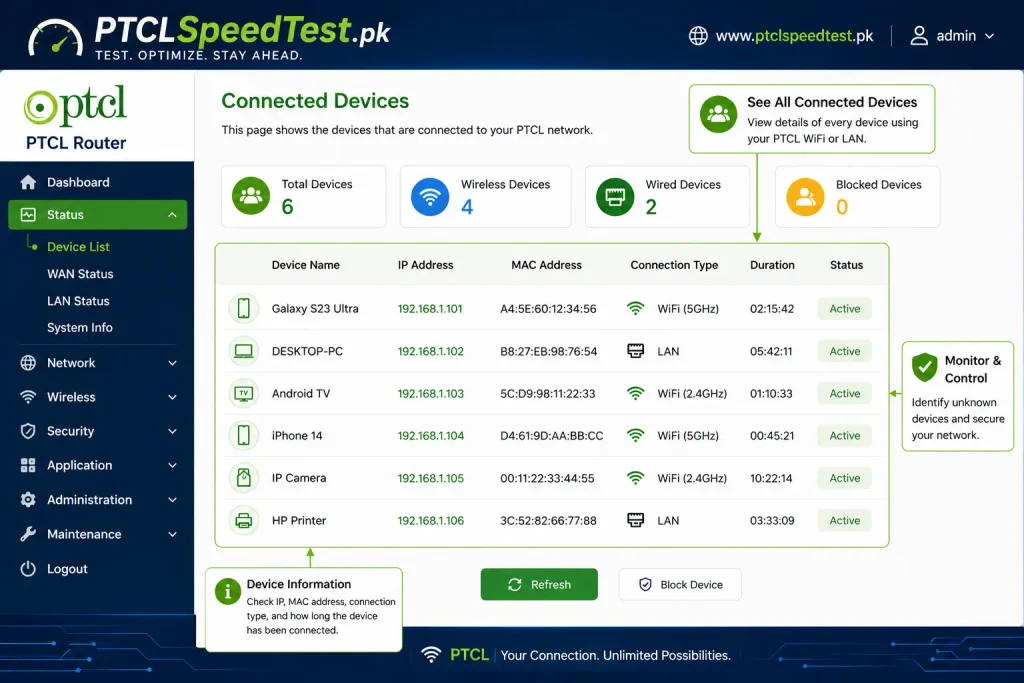
Once you’ve found the connected devices list, you’ll typically see a few columns of information for each device:
| Field | What It Tells You |
|---|---|
| Device Name | A label the device reports itself, which may or may not be descriptive (e.g., “Galaxy-S23” vs. a generic name) |
| MAC Address | A unique hardware identifier for that specific device, useful for telling devices apart when names are unclear |
| IP Address | The local address assigned to that device on your network |
| Connection Type | Whether the device is connected via WiFi or a wired Ethernet connection |
| Active Status | Whether the device is currently connected or was recently active |
Device names aren’t always helpful on their own — a device labeled only with a generic manufacturer name doesn’t immediately tell you whether it’s your phone, a smart plug, or something unfamiliar.
Unknown Device?
Before assuming an unfamiliar entry means someone has hacked your WiFi, it’s worth working through the more likely explanations first:
| Device Type | Common Name You May See |
|---|---|
| Samsung Phone | Galaxy, Android, SM-XXXX |
| iPhone | iPhone |
| Windows Laptop | DESKTOP-XXXX |
| Smart TV | Android TV, LG TV, Samsung TV |
| Printer | HP, Canon |
| Camera | IPCAM, Hikvision |
| Smart Plug | Tuya, Smart Plug |
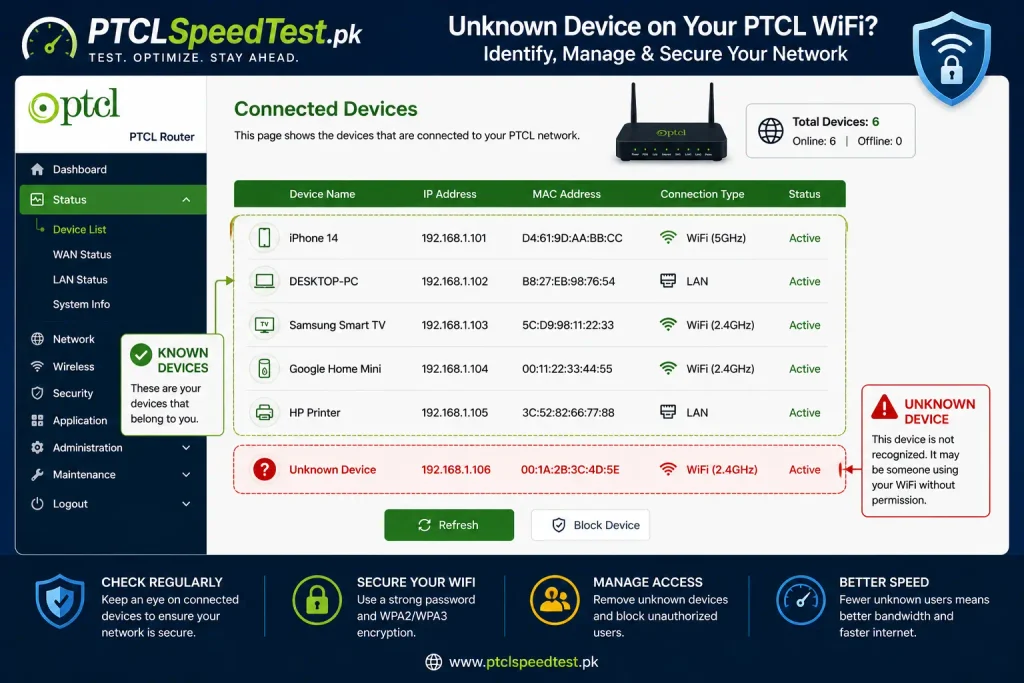
- Phones and laptops sometimes show up under a generic manufacturer name rather than a personalized one, especially if a device’s name was never customized
- Smart TVs and streaming devices often use non-obvious default names
- Smart home devices — plugs, bulbs, cameras, speakers — are easy to forget about since they’re rarely interacted with directly, but they stay connected continuously
- Guest devices from a recent visitor may still be listed if they haven’t been disconnected or if the device auto-reconnects when back in range
A practical way to identify an unclear device: temporarily turn off WiFi on each of your own devices one at a time and see which entry disappears from the list. Whatever remains after you’ve accounted for all your own devices is genuinely worth investigating further.
Think someone is slowing down your internet?
First run a PTCL Speed Test, then remove unknown devices and compare your speeds again.
Remove Unknown Users
If you’ve identified a device that genuinely doesn’t belong on your network, a few approaches work:
Change your WiFi password. This immediately disconnects every device, known and unknown, requiring everyone to reconnect with the new password — see How to Change PTCL WiFi Password for the full process.
Restart your router. This can clear active connections and, combined with a password change, ensures unauthorized devices can’t simply reconnect automatically. See the PTCL Router Restart Guide if needed.
Reconnect only trusted devices. After changing your password, deliberately reconnect only the devices you recognize, rather than assuming everything will sort itself out automatically.
Block Devices
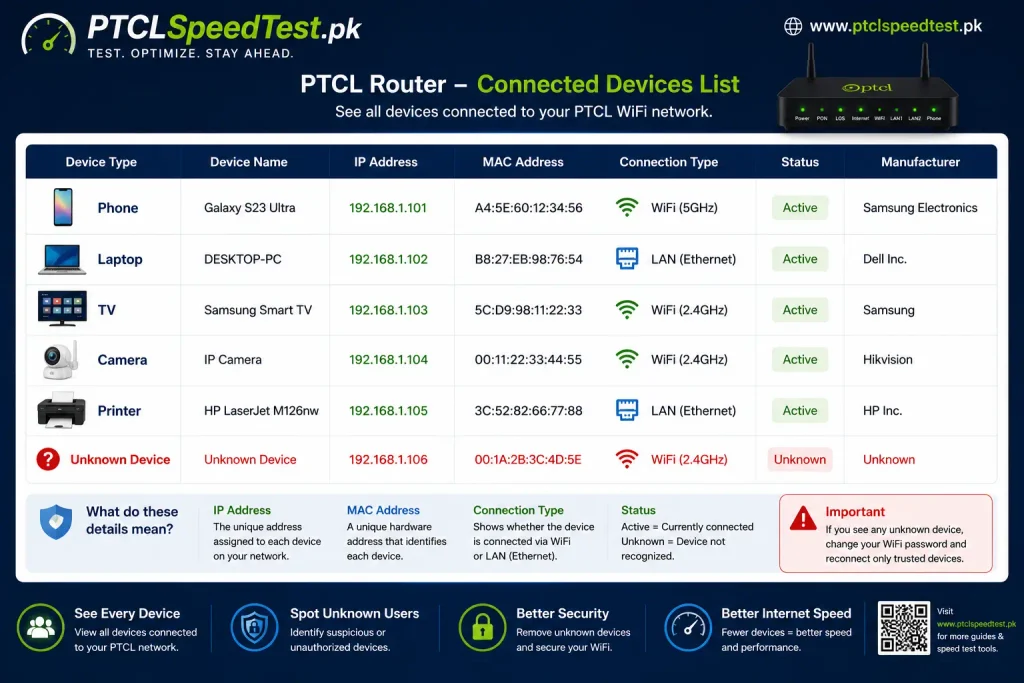
Many PTCL routers support a feature generally known as MAC address filtering, which allows you to block a specific device from connecting even if it has the correct password. This is typically found in the same Wireless or Security section of the admin panel.
Availability and exact steps vary by router model, so check your specific router’s Wireless or Access Control menu for a “MAC Filtering” or “Device Blocking” option if this is something you want to set up.
⚠️ Warning Blocking the wrong MAC address can disconnect your own device instead of the intended one. Always positively identify a device — using the elimination method described above, or by matching its MAC address to a device you can physically check — before blocking anything.
Security Tips
- Use WPA2 or WPA3 encryption if your router supports it, rather than older, weaker security protocols
- Choose a strong, unique password — see How to Change PTCL WiFi Password for specific guidance on what makes a password genuinely strong
- Keep your router’s firmware updated if your model supports it, since updates sometimes patch security issues
- Set up a guest network if your router offers one, so visitors don’t need your main password
- Don’t share your main WiFi password more than necessary, and change it periodically, especially after guests no longer need access
💡 Pro Tip Regularly checking your connected devices list — even once a month — helps you notice unauthorized access early, often before it becomes noticeable enough to affect your internet speed.
Common Mistakes
- Assuming every unfamiliar device name means a security breach, without checking your own devices first
- Blocking a device without confirming its identity, risking disconnecting yourself instead
- Changing the password but not reconnecting your own devices with the new one, leading to confusion about “no internet”
- Never checking the device list at all, and only investigating after a problem becomes severe
- Relying on device names alone rather than cross-checking MAC addresses when a name is ambiguous
Troubleshooting
Can’t find the connected devices menu? Check under a general “Status” or “Network” tab — the exact label varies by router model, but the information is almost always available somewhere in the admin panel.
Device list shows more entries than expected? Work through the elimination method described earlier, temporarily disconnecting your own devices one at a time to see what remains.
Still slow after removing unknown devices? If your speed test result still doesn’t match your package after confirming your network is only being used by devices you recognize, the cause is likely unrelated to shared bandwidth — see Why Is My PTCL Internet Slow? for a broader troubleshooting sequence.
Blocked the wrong device by accident? Return to the same Access Control or MAC Filtering menu and remove the block, then try again after more carefully identifying the correct device.
Ready to Secure Your WiFi?
Once you’ve reviewed your connected devices and removed anything unfamiliar, a few follow-up steps help confirm everything’s back to normal. Run a PTCL Speed Test to see whether your speed has improved now that your network is clean. If you haven’t already, consider [changing your WiFi password] as a general precaution, and a quick [router restart] afterward ensures the changes are fully applied.
Quick Security Checklist
✅ Strong password
✅ WPA2/WPA3 enabled
✅ Unknown devices removed
✅ Guest network enabled
✅ Firmware updated
Frequently Asked Questions
How do I check who is connected to my PTCL WiFi? Log into your router’s admin panel (commonly at 192.168.1.1), and look for a “Connected Devices,” “DHCP Clients,” or “Wireless Clients” section under Status or Network.
What information can I see about connected devices? Typically the device name, MAC address, IP address, connection type, and whether it’s currently active.
How do I know if a device is mine or unknown? Try disconnecting your own devices one at a time and watch which entries disappear from the list — whatever remains is worth investigating further.
Can someone use my WiFi without me knowing? Yes, particularly if your password is weak, has been shared widely, or hasn’t been changed in a long time.
Does a slow internet connection mean someone is stealing my WiFi? Not necessarily. Peak-hour congestion, background downloads, or your own forgotten devices are all more common causes than unauthorized access.
How do I remove someone from my WiFi? Changing your WiFi password immediately disconnects everyone, requiring a new password to reconnect — this is the most reliable way to remove an unwanted user.
What is MAC address filtering? It’s a router feature that allows you to block specific devices from connecting based on their unique hardware identifier, even if they know your password.
Can blocking a device disconnect my own devices by mistake? Yes, if you block the wrong MAC address. Always confirm a device’s identity before blocking it.
Why does a device show a generic or unclear name? Many devices, especially smart home gadgets, don’t automatically use a personalized name, making them harder to identify from the name alone.
Is it normal to see more devices than I expect? Often, yes — smart TVs, smart plugs, and other background devices are easy to forget about but remain connected continuously.
Should I change my WiFi password regularly? It’s a reasonable habit, especially after sharing your password with guests or if you suspect unauthorized access.
What’s the difference between WPA2 and WPA3? Both are WiFi security protocols; WPA3 is newer and generally offers stronger protection where supported by your router.
Does a guest network help with security? Yes. It lets visitors connect without giving them your main network’s password, keeping your primary devices more isolated.
Can I see connected devices without logging into the router? Some third-party apps can scan your network for connected devices, but logging into the router’s own admin panel is the most direct and reliable method.
What should I do if I don’t recognize any device but I’m sure it’s not mine? Change your WiFi password immediately, restart your router, and reconnect only devices you recognize going forward.